Monday, 8 December 2014

Four days with my iOS devices travelling in Ireland

It seems a little bit weird this morning to be in front of my iMac at my desk in the office. On my Irish trip I managed really well without having my Mac in front of me and for the most part I didn’t need to have the full OS X experience. I have got quite used to having just the single window to look into to do my computing. It is really pretty easy to use the four finger swipe to move to the next application or the previous application I was working with. If I think that the application is more than a swipe away, or I am not sure exactly how far away it is in the stack, then I use the home button to see all of my open applications. I can then swipe between the thumbnails and icons for each of the apps to get where I want to go to. I have found that I can work quite quickly indeed using just my iPad Air 2 and my iPhone 6. These two devices together as a brilliant combination especially for Blogging on the Move with iOS.

Swapping and pinching on the iPad

Today I learned a new gesture that I can use on my iPad Air 2. This is a gesture that is specific to Safari for iOS. It is a three finger pinch which takes you to a screen where you can see all of your open tabs on your browser. Not only does it show your tabs that you have available on your iPad it will also show you a list of URLs you have open on other iOS devices that you are logged into with your Apple ID. So this would be quite handy if you were using your iPhone 6 to look at a webpage and decided that you wanted to see it in a larger format on your iPad Air 2. You do your three finger pinch to get to that screen, tap on the web page that you want to look at that is showing up your other device and hey presto you have it available in front of you. It is always good to find something new and marvellous that you can do with your iOS device. I spent some time drawing on my iPad using Sketchbook app from Autodesk.
Puffin Web Browser Download

Alternatives to using Safari browser on iOS

There is of course the Chrome Browser which is quite popular and I have used it a few times on my iOS devices. These days I tend to use the Safari browser 99% of the time. There are occasions when it is necessary to look for some other browser to get done what you need to do in a webpage. I had the Puffin browser recommended to me and while I was away on my trip I did have the occasion to use it. I have the free version and it did what I needed it to do. There was a webpage that must have been running some code in the background as part of its functionality. It was a webpage for creating emails on Mailchimp and was probably using something like JavaScript to make that happen. Or it could have been something to do with Flash. The Puffin browser app will actually let you view pages where flash is being used. Puffin does this through some server side technology and it does seem to work.

Paste not working in iOS sometimes

Whatever technology this webpage was using was stopping me from pasting from my clipboard into a section of the webpage. Every time I tapped on the area where I wanted to paste I saw a quick flash of the button for pasting and then it disappeared. When I did this within the Puffin browser it sort of did the same sort of thing, but it also gave me a separate bar of options below the field where I wanted to paste. So after a little bit of frustration in trying to get the job done in the first place, I was able to use my iPad to create those emails. I would much prefer to be using my Mac and my favourite blogging editor MarsEdit, but I did get the job done using the iPad.

Friday, 28 November 2014

Being productive with my Apple computers

A busy and productive week with my iOS devices and my Mac

Although this website is meant to be just about using touchscreen devices such as my iPhone and also my iPad, sometimes I have to mention the fact that I’m also using a Mac. It is all about having seamless integration between my computer devices whether they are desktop versions or whether they are my mobile devices. Wherever possible I choose iOS applications that have versions for both the Mac and also for iOS. For example, I use the application OmniFocus on my Mac and I also bought the versions to go for the iPad and iPhone. (It still bugs me that the iOS versions are not universal and that I have to buy separate versions for each device.) The same goes for iThoughtsX, Tweetbot, DayOne, Clear, 1Password and also Byword. Apart from being able to move files easily from one device to another it also makes it easier to remember how things happen because the developers try to make the applications work in similar ways where possible. So me being able to work in this way leads to less confusion. Yes it is true I am easily confused!

Blogging with the iPad using Drafts and Byword

This week I did two videos looking at ways to blog only using the iPad. On one of the workflows I used I did the whole thing on the iPad. I did all of the writing and collected all of the images and the embed codes for the video, on the iPad. I was able to get a post up to one of my websites directly from my iOS device. Some silly people still say that iPads are not good for creating content and are only good for consuming content. They obviously don’t know what they’re talking about and haven’t properly tried using an iPad or an iPhone. Next week I should do the same again, but using my iPhone 6 to prove it can also be done on an even smaller device.

Blogsy is an all-round super iPad blogging application

It would have been possible for me to do all of my writing into the Blogsy iPad application, but I wanted to use Byword for the writing. There are formatting facilities within Blogsy, but it was easier for me to write it in markdown and then to export out the text as HTML code. Another reason why it was easier for me to use Byword is because I wanted to do some of the writing on my Mac. I did about three quarters of the article on my iPad and then I opened up the same document on my Mac and did a little bit more. Due to the application synchronising over iCloud this was very easy for me to pick up at either end and continue working.
In Blogsy I was able to upload images ready to put into my blog post directly within the application. It is quite easy to get at these images and to drag and drop them into the post. I had forgotten that it is possible to place your picture either to the left justification, centre justification or to the right. Now that was really very handy indeed.

Thursday, 20 November 2014

A wealth of applications on iOS - Part One

A wealth of applications on iOS

Since I got the iPad Air 2 and the iPhone 6 I have gone a little bit crazy with the number of applications that I have been adding to my iOS devices. There are some brilliant applications out there that do all sorts of things. Coming back into the iOS universe I have been keen to try out a few applications that I haven’t tried before, especially those that were not available on Android. This is despite the thoughts that I have been having lately that I should rationalise the number of applications I use. I think it is a good idea to make your choice on the application that you prefer to do a particular task and then to stick with it.

Notetaking on iOS - My choices

It not good to have text and notes scattered willy-nilly in between various notetaking applications. So you don’t really want to have one or two notes that you have arbitrarily decided to put into Simplenote, then one or two notes that are in the application Drafts and then other notes which are in Byword. Even so, despite this I have a number of notetaking applications on my iOS devices. Some of them are there to be used for specific purposes and some of them are just for me to have a look at. One of the applications that I have for me just to look out for the moment it is Microsoft OneNote. It does look like it is quite an interesting application that could be very useful. I just haven’t really spent any time with it yet to see if it would work better for me than Evernote. I also have an application called Editorial which is a really clever, well featured writers application and I haven’t really worked out the best way to use it yet. There is the default Apple Notes application which I haven’t even looked at and I also have MarginNote Pro. Sometimes I just get these applications because I see that they have been offered for free for a couple of days and I get them to have, just in case.

Drafts and Markdown

So the way that I keep notes, is like this. If I’m going to do some writing that is of a long form such as an article for a website or something that is going to be used as a chapter for a book, then I will usually start that in Byword on iOS. Mind you, that may have started off as a mind map, and has been pushed through to Cloud Outliner before I start filling in the body of the work.

Quick notes

If it is just a quick note and not something that is a to-do type of capture, then I will use the application Drafts. There is a chance that sometimes a note that I do in Drafts is only meant to be a quick note, but could end up as something longer so I will later move it to Byword. Sometimes it is hard to know when I get started how long or how much text I will up writing.

Read The Rest of this Article

Monday, 3 November 2014

A Visit to Ireland


 Shooting video with the iPhone


I am getting great use out of my iPad and my iPhone, especially when I am travelling. On this trip to Ireland I recorded snippets of video here and there and I was able to edit them on the iPad while I was away. This video I edited when I got back home, but I edited the on my iPad using Pinnacle Studio. When I was why I was using the application called Replay. It does a lot of the organising of the video clips automatically and adds music, which makes it very easy and quick to use. I think I like to have a bit more control over my video editing. I could do with spending some time with Pinnacle Studio and seeing what else I can do with it to make some good video edits.

Saturday, 25 October 2014

Down and dirty with the iPad Air 2

Setting up an iPad Air from the backup of the old one is fast

iPad Air 2 day

I made a wise decision to set the new iPad up from a backup of the previous iPad I was using and I was utterly amazed how quickly it was able to be nearly completely set up. I did make a little bit of a mistake in that it would have been better for me to have the iPad connect to iTunes and to go through the rest of the applications that I wanted to have added to the iPad. I already had these latest versions of iPad apps downloaded into iTunes and it would have been much quicker to install them on to the new iPad. The backup didn’t have all of the apps that I wanted for the new iPad. My previous iPad was only a 16 GB version and because of that I had taken many applications off due to the lack of space available. I was able to speed up that process somewhat by reconnecting the iPad to the iMac again and applications that hadn’t started to download to the iPad were then uploaded from iTunes. It didn’t really matter too much, on account of the fact that I was having to go out of the house anyway and I wasn’t planning to take the iPad out with me either. I could just let it do its stuff and it was ready for when I got back home.

More setting up to be done.

It was necessary for me to go into the settings for 1Password so that I could have touch ID enabled. In fact I also had to set up the Touch ID on the new iPad because my old iPad didn’t have Touch ID. I set this up so that I can use either my thumb or forefinger of my right hand and for the moment is just the thumb on my left hand. This seems to work quite well for me.

Loading up more applications

To celebrate the launch and delivery of the new iPad Air 2 the application Pixelmator for iPad was released today. I had already decided that I was going to buy this version of the Pixelmator application on account of it being such a good application on my iMac. It was the princely sum of €4.49 for Pixelmator for iPadand at that it is a bargain. I am looking forward to getting into that application and seeing what I can do with it creatively.

Cursor and Aperture

The camera on the iPad has now been upgraded to 8 megapixels and it is quite likely that I will use it to either take photos. I will also use the iPad to edit Spondicious Photos that come in through the Photo Stream. I have quite a few camera applications such as HDR, Paper Camera, Photo Sphere, Pro-Cam XL, Slow Shutter and there is another camera application called Camera Plus with AirSnap, which I want to try out. I have held back on buying that application because there is more than one application with nearly the same name and I want to make sure I buy the correct one. I went to the App Store for the Camera Plus application and the one to get is the one that offers the AirSnap. That lets you use one iOS device to control another for taking photos. It also does the thing with the focus that you see in the movies a lot called pulling focus. You have one part of the image in focus and when you pull the focus a different part gets the focus and it is a good story telling tool.

The camera is also going to be good for shooting video and I already have a couple of extra applications for shooting video. I have Movie Pro, Spark and Capture. Then I want to try out the application called a Replay as that was the application demonstrated at the iPad Air 2 Apple keynote. The iPad for editing video

Another great application that I have been meaning to try is the sky at night type of application which is called Star Walk 2. Where I live there is quite often clear skies and I would like to be able to look up into the sky and to have the constellations named for me. I can always look up and find Orion’s Belt and I know which star is called Betelgeuse, but I would like to know more. The iPad is such an educational device, it is amazing and this is a great example of that.

Security on the iPad for email

I do receive some email messages that have been encrypted and I need to be able to decrypt them on iOS. One thing I need to do is to add some of these certificates for my S Mime email encryption. I also have the application called oPenGP Lite which allows me to encrypt and decrypt both files and text. I do have to do the text within this application and not within the mail application by doing a copy and paste. It is pretty easy to do though and it is just handy to have the ability to do this sort of GPG encryption and decryption where ever I might be.

I also have an application called iPGMail and I might have a look at that again to see if it is going to be useful for email security on my new iPad Air 2. It’s a long time since I tried this application and I hope that in the meantime it has improved. I don’t remember it been particularly easy to use the first time around.
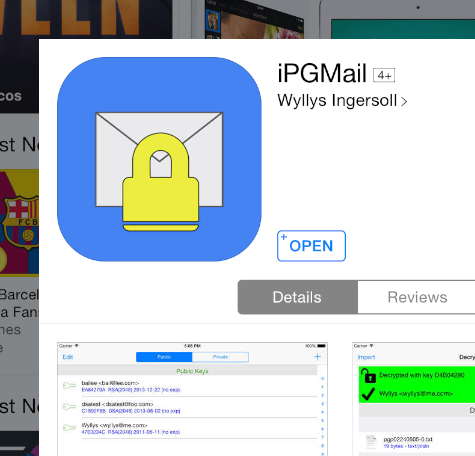
IPGMail

Games on the iPad Air 2

I don’t spend much time playing games on the iPad or on my Mac. It is, however quite nice to have one or two on there just in case. A game that I enjoyed playing before was Temple Run and I had a couple of versions of this. I had to stop playing it last time because it got too addictive. I also have a couple of word games on the iPad and one of them is called LetterPress.

My first impressions of the iPad Air 2

I decided to go with the 128 GB Silver iPad Air 2 and also have the LTE option. This gives me the SIM slot so that I can get better use of the iPad while I am out and about. I had to go down to the phone shop this afternoon to collect a new SIM card. I also have the Gig Sky SIM that I can use in this iPad when I go travelling to Ireland at the end of this month. I will be paying €11 per month for 1.2 GB. I had to do this with a separate account although I was expecting to get a special SIM card that only cost three euros per month and use the same data plan I have for the iPhone. It would have been quite handy to only have one bill for my data covering the iPhone and also the iPad. That didn’t work out, but the deal that I got isn’t too much different.

It’s a beautiful screen

Apple was correct in saying that the screen was improved over the previous retina screens. The new iPad Air 2 does have a particularly nice screen that is less reflective than the previous screens. I find this very useful for when I am reading books on my iPad. Even when I am using other applications it does seem that the images and text are almost floating on top of the screen. This makes my iPad Air 2 even more of a delight to use.

Is it a good upgrade to the iPad Air 2?

There are one or two people that are using the previous version of the iPad Air saying they don’t intend to update their iPad. They are correct to make a decision like this if they don’t find the need for the Touch ID or the new and improved camera. The weight of the new iPad is quite similar to the previous version. The faster chip on the new iPad is good to have, but you might not notice such a big difference if you are only changing by one iteration of the iPad.

I have jumped two or three versions of the iPad and for me it makes a huge difference and it is all worthwhile having. I have got the version that I can put a Sim card into and have mobile data and that gets me better GPS. Then there is also a motion coprocessor and so for me there are a number of good reasons stacking up to make this a good decision to upgrade to the iPad Air 2.

Wednesday, 8 October 2014

My first impressions of the iPhone 6

Love at first Sight

It was love at first sight with Nymeria, which is what I have called the phone. I named her after the Wolf which was spiritually connected to the character Arya in the game of thrones book. I would have chose the name Arya, but I wanted something a little bit more exotic and Nymeria fitted the bill. It is the first time that I have got a white phone and along with the dimensions of the iPhone 6 it looks very slick indeed. It is very shiny and easy to hold and yet it feels solid enough also. You would have to be quite careless or stupid in order to bend it.

The battery on the iPhone 6

I feel a little bit disappointed with the longevity of the battery so far. I know that it is likely I’m going to be using it up more quickly because of using it a lot, with it being so new and shiny. At the same time it is quite a big change from the Samsung Galaxy S3 which I was using with a huge battery attached to it. I could easily get two or three days out of that battery and the only downside was the extra weight and heft for keeping it in my pocket. I am going to have to get an external battery that I can use to charge the iPhone 6 up during the day. On my first day with the iPhone 6 at work I got a low battery message at about seven hours, maybe seven and a half. I did have it plugged into my car charger for about 15 minutes during that time, but that didn’t really add too much to the battery.

So I’m going to have to buy another charger and cable as having only one lightning cable is not enough. Of course, I will get another cable and charger when I buy the iPad. I think it will be useful having another extra cable I can use for when I am in the car connecting it to the radio. The other thing about the iPad Charger is that it charges at a higher rate and it allows the iPhone to charge more quickly.

The battery on the larger version of the iPhone 6 is larger by about 1.6 times and people are reporting that it gives good use times for the phone. It did cross my mind a couple of times that maybe I should take this phone back and to make another order for the larger version of the phone. It would cost me about €100 to get the larger phone and then I would have the problem of it being too big for fitting into my pocket. So I have kind of decided that I’m better to keep with this one and I should save the money to put towards the iPad. My usage between the two devices will work out quite good in terms of being able to carry on with whatever work I am doing.

Buying more applications for use on the iPhone 6

There are one or two new features that come with IOS 8 that are like having new applications on the phone. There is the Hey Siri feature when it will listen to whatever you’re saying and do your bidding when you have it plugged in. For instance I just wanted to know how long before I need to have lunch before I get ready for work. I said the magic words and asked how many minutes until 1 o’clock and I was given an answer by Siri very quickly indeed. There are plenty of other useful things with this newly introduced feature. I quite like to ask it “What is the time” is when I wake up in the morning. I don’t have two peer into the bright screen with my eyes that are not quite ready for bright lights, in order to know what time it is. Siri even says good morning to me.

I bought a couple of bundles of applications which is a new thing in the iTunes Store. The one bundle was for some productivity type of applications starting with an application called Paste+ and there were a couple of other applications available with it that looked interesting. So I bought the whole of in the bundle as it seemed like good value and I would be able to use the other apps. I also bought a bundle applications for health and fitness and the main one that I wanted was Map My Walk. You use this application to record when you go for a walk and of course this morning with my dog walk I forgot to set it in motion. I need to work on building up my habits for using these applications. This application reports into a fitness information aggregator called MyFitnessPal. It is one of these applications like the Health App from Apple that will gather information from other applications. It then will give you a full report on all of your health activities. You can have applications that you use to record your food intake has information into it. It is also possible to have information sent to it from your Fitbit or from a set of wireless enabled scales.

The iPhone 6 is my remote controller for my life

I will be carrying this phone everywhere were I go for the next year and I want to get as much use out of it as possible. There are a number of applications that I have that will automatically record some of my information. Such as the Moves application which records the number of steps and it also records where I am taking those steps. On my first day with the iPhone 6 I can see how many kilometres I walked, for how many hours I walked as well as how many steps I took. It recorded that I was at work at the campsite and is also recorded my travel to and from work. This is quite a simple application which provides useful information. I have just found out that I can send the information from it to MyFitnessPal. It can sometimes feel a bit tedious adding the food that I eat into the application but at least with MyFitnessPal I can group foods together to be able to add them quicker. I often have the same thing for breakfast and I can record my eating for breakfast with just one entry.

Health App

The other interesting application for health is a chatty application called Lark. It looks at the information and has a messages type of conversation with you in order to encourage you with your exercising. It is quite clever in the way that it does it and gives you useful tips for living a healthy lifestyle at the same time.

The apps that I have used so far on the iPhone 6

1Password

I have loaded up a lot of applications because I own a lot of applications. The ones that have had the most use from so far have been Day One, 1Password, Overcast, the health applications I have already mentioned and TwistedWave. I wanted to use the Audioboom app to record one of my quick podcasts yesterday. The only trouble is that you don’t get a chance to edit the audio before you submit it. This is why I used TwistedWave instead so that I could cut out a few of my speech idiosyncrasies and where I had fluffed the words. TwistedWave is a very good application and I highly recommend it. I used Day One this morning to write my journal for the day and I did that while I was still in bed. Overcast is the application that I use to listen to my podcasts I am subscribed to. With it being so boring at work at the moment, I have listened to a lot. This could be one of the things that was killing the battery although there is a possibility that the location-based applications I have been using were having an effect upon that even more so.

A lot more things to use and find out about with the iPhone 6

This morning I set it up so that I can receive encrypted emails which was pretty easy. It is a lot more difficult if I want to send out encrypted emails using those same certificates. I also have a GPG application installed but I have yet to put on the encryption keys so that I can use it. It took me a little while to get used to the security features of the iPhone 6. The Touch ID is marvellous and it works very quickly when I put my thumbs or the index finger of my right hand onto the fingerprint sensor. I use this when I am opening the phone up. I also have it set so that it requires me to supply a fingerprint to get into 1Password or Day One. It is an excellent feature to have these extra layers of security. I now miss having this Touch ID when I pick up the iPad.

So this has been a quick post about my first impressions and I still have to spend time looking at how well it shoots video and takes pictures. The next things on my list to try out are the camera features of the slow motion video and the timelapse video. I’m going to get an elastic band and attach the camera to my rearview mirror in the car and record a video when I am driving to work. I have iMovie on the iPhone and I will give that a try too. I should order a mount for the car and what I would like to do is also have a mount for the bicycle and perhaps a boom pole. The boom pole is something making it useful for recording selfie type videos.

Monday, 29 September 2014

Going back to Apple Only - After a year with Android

Goodbye to Android

I have made the decision to go back completely to Apple products even though I have enjoyed my year with Android. Without a doubt, the first six months I had with my Samsung Galaxy S3 were very good indeed and I really enjoyed using the phone. Same thing with the Nexus 7 although the experience with that has been better than with the Galaxy S3. The problem with the phone is that the carrier did not put out any updates to the operating system. I had to use rooting and CyanogenMod to get the thing to work with the latest software. I think that this is a bad problem for Android that should be sorted out. The main reason for me going back to Apple is that there are three or four applications that I want to use more of and they are iOS only. It is quite frustrating when I want to do something and the perfect application I don't have with me due to me only having Android in my pocket. I could possibly find some workarounds to be able to get what I want to do into these applications, but it is just too much messing around. It is this sort of messing around that I have had to do that has made the Android user experience for me disappointing and slightly second-rate. I am pretty sure that when I go back to using Apple I will not miss anything from Android. Well, maybe I will miss the Google Now just a little bit. It is quite handy for it to tell me what the traffic conditions are like for my drive home from work before I even ask for the information. It is also useful to get the latest scores from my football team Barcelona FC as they happen.


IPhone 6 monet

iOS 8 and New iPhones

Another reason that I have been able to go back to using Apple is because of the larger phones that have been introduced. I have gone with the 4.7 inch iPhone 6 as I have to have something that will fit into my shirt pocket. The iPhone 6 plus would have been far too big for that. I would always be worried that it would fall out and crash to the concrete. The addition of the third-party keyboards such as Swype and Swiftkey is also big news for me. I like being able to type by swiping my finger around the keyboard rather than tapping. The first version of Swype didn't work for me and I had to wait until there were new versions before I could properly use it. Now it is working a treat and I am pleased with it. I do have to go back to the ordinary keyboard from Apple, which is also improved, if I want to use the Siri dictation.

As I was dictating this into my Mac using DragonDictate my iPad thought I had said "Hey Siri". Siri started listening to my voice for a question.

Hey Siri

This is another thing that I quite like with iOS 8 and yes I know that there is already something similar with Android. It is just another of those catch up things that Apple have done that mean I can go back to using just the Apple ecosystem.

Another thing that can be annoying when you are using two different systems is when you are entering things into your contacts or into your calendar. What happens is that you end up having two sets of data that are not exactly the same. Now that I am going back to just using Apple I am going to have to merge those two sets into one set. This is going to make it so that things are less confusing all around. I have found working with text annoying when I wanted to be precise about the position of the cursor on Android. It works much better on iOS.

Passing the devices down the line

I did think about keeping the Nexus 7 as I still like the device and enjoy using it, especially for reading. Then I remembered that my youngest son was looking for a tablet to use and I offered him this Nexus 7. Naturally, he wants to get his hands on this excellent Android tablet and so I will pass it on to him when I see him in a months time. The iPad that I am presently using will also get passed on when I get the new iPad next month. My wife will benefit from this as she is still using the iPad 1.